
What Is a Google Ads Agency Account (MCC) and How Does It Work?

Brian Sung
Published on July 1, 2026
What Is a Google Ads Agency Account (MCC) and What Does It Include?
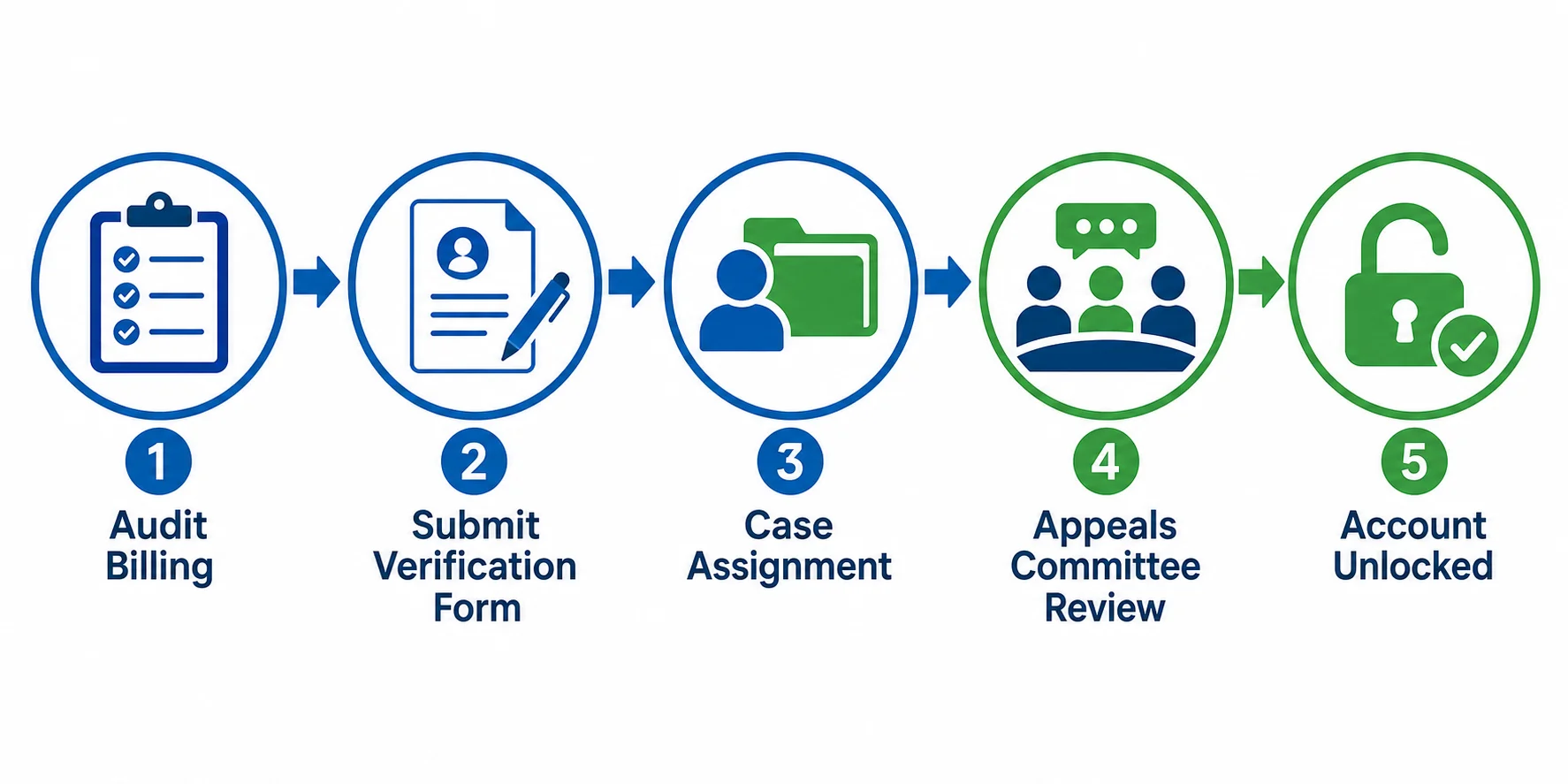
A Google agency ad account — officially a Google Ads Manager Account (MCC) — is a free Google Ads account type that allows agencies, advertisers, and businesses to manage multiple Google Ads accounts from a single login.
Google calls it a Manager Account. The industry still calls it MCC — My Client Center. The name from Google's documentation (Manager Accounts overview) makes the distinction clear: this is a management account, not an advertising account. You cannot run campaigns from an MCC. You run campaigns from the individual accounts linked to it.
What an MCC includes
Cross-account management. From the MCC dashboard, you can view and manage all linked accounts. Switching between accounts takes one click. You can view a consolidated performance dashboard that shows metrics across every account, or drill into an individual account's detailed reports.
Google's MCC documentation emphasizes that cross-account reporting is the feature most agencies use daily: the ability to see which accounts are underperforming or over-performing without logging into each one separately.
Granular access control. MCC supports three permission levels:
| Permission Level | Capabilities |
|---|---|
| Admin | Full access to account management, billing, user permissions |
| Standard | Campaign management, reporting — no billing or user management |
| Read-only | View performance data only, no ability to make changes |
This tiered permission model allows agencies to give junior team members campaign access without exposing billing, and to give clients read-only access to see their own performance.
Bulk operations. MCC supports making changes to multiple accounts simultaneously — adjusting budgets across accounts, applying the same negative keyword list, or pausing campaigns during a policy update. Google's bulk operations feature processes changes across up to 1,000 accounts in a single action.
Account creation. You can create new Google Ads accounts directly from your MCC. New accounts are automatically linked to the manager and can be configured with default settings before you assign them to a client or team.
The client ownership structure
The most important structural feature of Google Ads MCC is that the client always retains ownership. Here is how it works:
1. The agency creates an MCC using a fresh email address that has never been used for an individual Google Ads account.
2. The agency sends a linking request to the client's Google Ads account using the client's 10-digit Customer ID.
3. The client accepts the request from within their own Google Ads account.
4. The client can revoke the agency's access at any time — without the agency's involvement.
Google's policy is explicit: the account belongs to the advertiser, not the agency. This is a protection for the advertiser that is harder to replicate on other platforms. If the relationship ends, the client keeps their account, their campaign history, their conversion tracking, and their quality score data.
Portcast provides Google Ads agency accounts through the same customer-owned structure: the account is opened and delegated to the advertiser's Google account. We do not retain ownership or control after delegation. This is the difference between an asset and a dependency — and it is the reason we publish our account model openly rather than leaving it ambiguous.
How to Link an Existing Google Ads Account to a Manager Account
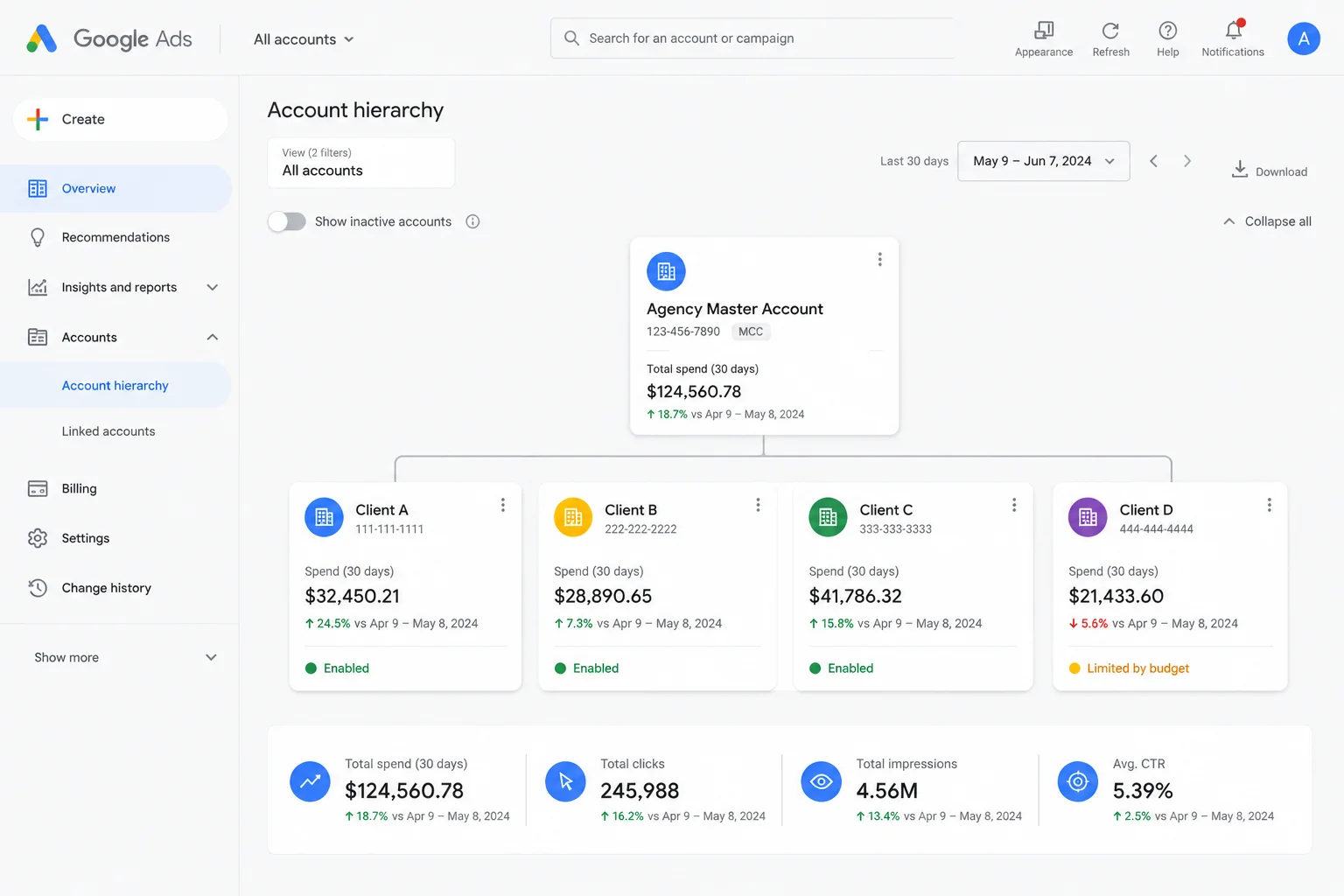
The linking process for Google Ads Manager Accounts is straightforward but requires the client's active participation. Google does not allow agencies to unilaterally take control of client accounts.
Step-by-step linking process
Step 1: Create the MCC. Go to Google Ads Manager Account setup and create your MCC. If you are looking for a qualified accountant or Google Ads agency near me to manage your campaigns, the MCC structure means you can grant access to a remote agency regardless of geographic proximity — no local office visit required but finding a good accountant Google Ads agency near me that understands your vertical still matters for compliance and strategy. Use a fresh email address — one that has never been used for a standalone Google Ads account. If you use an email that already has a Google Ads account associated with it, the MCC creation will fail or create conflicts.
Step 2: Get the client's Customer ID. Each Google Ads account has a 10-digit Customer ID, formatted as `123-456-7890`. The client can find this in the top-right corner of their Google Ads dashboard under Account Settings.
Step 3: Send a linking request. From your MCC dashboard, navigate to Accounts and select "Link existing account." Enter the client's Customer ID and select the permission level you need (admin for full management, standard for campaign-only access).
Google's support documentation specifies that the client will receive the linking request in their Google Ads account under "Notifications" and must manually approve it.
Step 4: Client approves the request. The client logs into their Google Ads account, goes to "Notifications" or "Access and Security," and approves the linking request. Once approved, the agency can see and manage the account through their MCC.
Step 5: Configure access for your team. Once the client account is linked, assign your internal team members appropriate permission levels. Each team member needs their own Google account to be added to the MCC.
What happens after linking
- The client account appears in your MCC dashboard alongside all other linked accounts.
- You can view performance data, create campaigns, and manage settings — subject to the permission level granted.
- The client retains full control of their billing, their account settings, and their ability to revoke your access.
- If the client revokes access, the account disappears from your MCC immediately. No campaign data, no conversion data transfers to your MCC.
Common linking issues
Email conflict. If your MCC was created with an email already associated with a Google Ads account, the linking process may fail. Create a dedicated email for MCC management.
Pending requests. If a linking request stays in "pending" status for more than 30 days, Google expires it. The client needs to check their notifications and approve within the window.
Multiple MCCs. A single Google Ads account can be linked to multiple MCCs (for example, an in-house manager and an external agency), but each link request must be individually approved by the account owner.
Portcast handles the linking process as part of onboarding: we provision the account, delegate access to the advertiser's Google account, and confirm the link is active before any ad spend begins. We do not take control of existing accounts — the account is opened as a new, separate asset that the advertiser owns from day one.
Google Ads MCC Consolidated Billing — How It Works and When to Use It
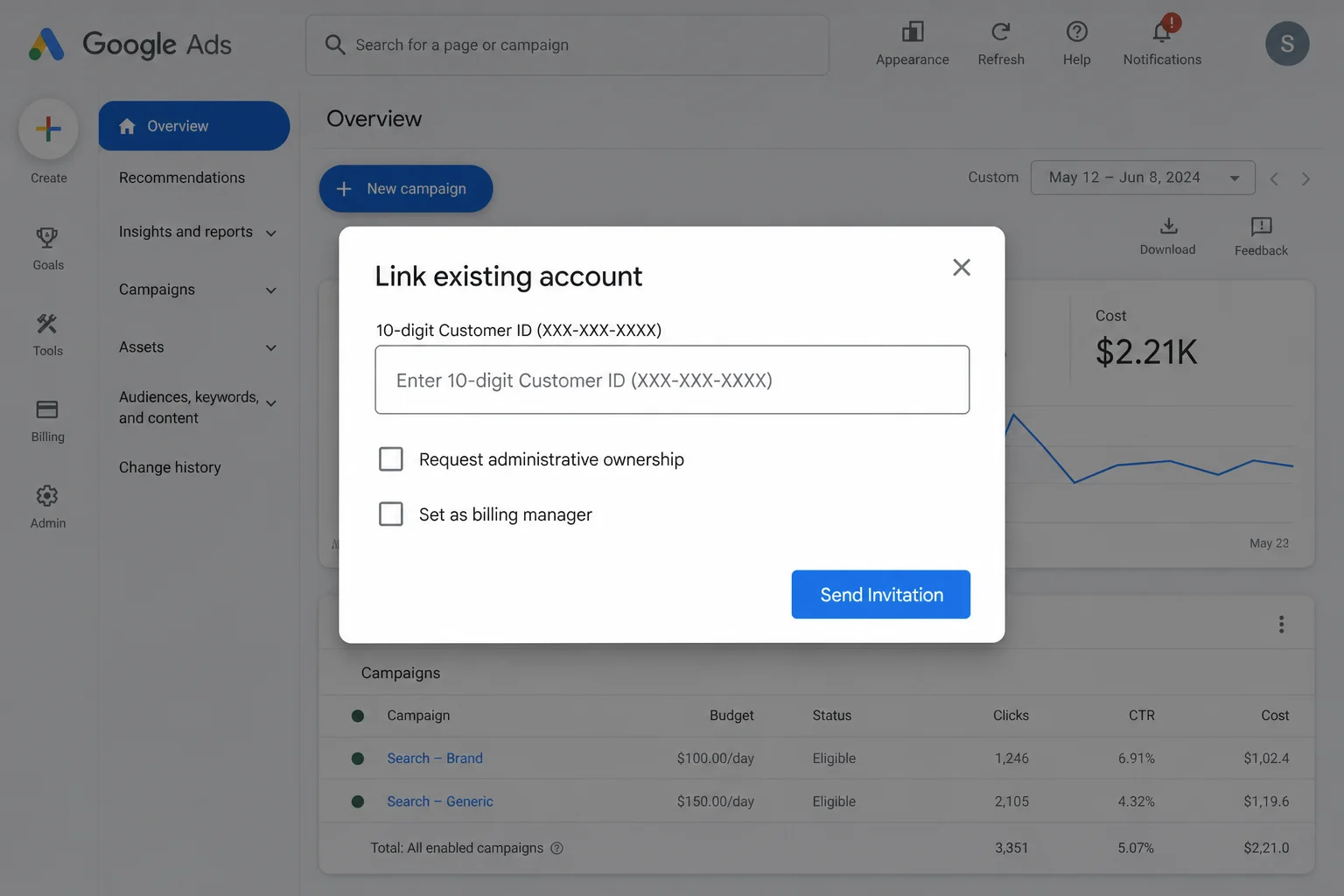
A Google ad agency account typically uses either consolidated or separate billing. Consolidated billing is an optional Google Ads MCC feature that changes who pays for the campaigns and how invoices are structured.
How consolidated billing works
In the standard model — called "separate billing" — each client account pays for its own campaigns. The client enters their own payment method. Google sends invoices directly to the client. The agency never handles payments.
In the consolidated billing model — called "Manager Defined Spend" or MDS — the manager account pays for all linked client accounts. Google sends a single invoice to the agency, and the agency is responsible for collecting payment from each client.
Google Ads Help documents that consolidated billing is available to MCC accounts that meet specific qualification criteria — typically based on the total spend managed through the MCC and the agency's payment history with Google.
When to use consolidated billing
Consolidated billing makes sense if:
- You manage clients who do not want to set up their own billing with Google.
- You want to offer net payment terms to your clients and handle the billing relationship yourself.
- You need centralized visibility into total spend across all accounts for your own financial reporting.
When to avoid consolidated billing
Consolidated billing adds risk. The agency becomes responsible for paying Google regardless of whether the client has paid the agency. If a client defaults, the agency still owes Google the full amount.
For most advertisers, separate billing (client pays Google directly) is the simpler and lower-risk option. The client maintains direct control of their ad spend, and the agency does not take on financial liability.
What changes with billing structure
| Aspect | Separate Billing | Consolidated Billing |
|---|---|---|
| Who pays Google | Client | Agency |
| Who receives invoices | Client | Agency |
| Client payment risk | Client manages their own payment | Agency carries client credit risk |
| Client budget control | Client sets and controls budget | Agency can set spend limits via MDS |
| Cashback eligibility | Client may qualify directly | Agency receives cashback based on total portfolio |
| Invoice detail | Per-account invoices | Single invoice for all accounts |
Portcast does not publish cashback terms — they depend on platform, volume, and advertiser qualification. Our AM discloses the exact terms during the fit review. The model we use is transparent, prepaid, and client-controlled: we open the account, the client prepays into their wallet, and the client controls allocation through their dashboard.
A Google Ads Manager Account (MCC) is a management tool that centralizes account control, enables team permissions, and provides cross-account reporting — but every account under the MCC must still comply with Google's Advertising Policies. Portcast provides Google Ads agency accounts with compliance review before onboarding, direct escalation to platform teams, and backup account provision within 1 day.
If you are managing Google Ads campaigns across multiple accounts and need an agency account structure that keeps ownership with you, talk to our AM. Describe your platform situation and current account structure. We will review fit and confirm the next step — no payment before scope is confirmed.
Written by Brian Sung
Growth Lead at Portcast Media. Writing about ad account infrastructure, platform policy, and how performance advertisers scale without getting shut down.
LinkedInFrequently asked questions
How does a Google Ads MCC work for managing multiple clients?+
A Google Ads MCC (Manager Account) works as a centralized dashboard that links multiple independent Google Ads accounts. You create the MCC using a dedicated email, then send linking requests to each client account using their Customer ID. Once the client approves, you can view all accounts in one dashboard, switch between them with one click, and assign team members role-specific permissions. Each account remains independent — its own settings, its own billing, its own compliance record. The Google Ads MCC overview documents the full linking process and permission structure.
How to link an existing Google Ads account to a Manager Account?+
Start by getting the client's 10-digit Customer ID from their Google Ads account settings. From your MCC dashboard, go to Accounts and select "Link existing account." Enter the Customer ID and choose the permission level. The client must then approve the linking request in their own Google Ads account under Notifications or Access and Security. The approval must happen within 30 days or the request expires. Once approved, the client can revoke access at any time without the agency's involvement.
What is Google Ads MCC consolidated billing?+
Google Ads MCC consolidated billing explained: it is an optional feature where the MCC account pays for all linked client accounts instead of each client paying Google directly. Google sends a single invoice to the agency, who then collects from each client. This is called Manager Defined Spend (MDS). It is useful when clients prefer not to manage their own billing or when the agency wants centralized spend control. The trade-off is that the agency carries the payment risk — if a client does not pay, the agency still owes Google.
Is a Google Ads MCC right for a freelance PPC manager?+
For a freelance PPC manager managing 3 to 5 clients, an MCC is worth setting up. It eliminates the friction of logging into separate accounts, provides cross-account reporting, and gives clients the confidence that you are operating through a professional account structure. The MCC itself is free to create. The time investment is the linking process — each client must approve the link individually. For freelance PPC managers starting out, Google recommends creating the MCC first with a dedicated email, then linking client accounts as you sign them.
How to create a new Google Ads account inside an MCC?+
From your MCC dashboard, navigate to Accounts and select "Create new account." Enter the advertiser's business information, time zone, and currency. The new account is automatically linked to your MCC. Google's account creation documentation specifies that the time zone and currency cannot be changed after creation, so these must be set correctly from the start. Once created, you can assign the account to a team member, configure conversion tracking, and begin campaign setup. The advertiser can take ownership of the account at any time by accessing it directly through their own Google login.
Related reading
What Is an Agency Ad Account?
Cross-platform structure, control, and operational fit.
What Is a TikTok Agency Account?
Agency access, verification, and platform workflow basics.
What Is a Facebook Agency Ad Account?
Ownership, permissions, and risk framing for Meta setups.
Meta Whitelisted Ad Accounts Rent
A stricter look at rented access and long-term control tradeoffs.
Ready to check if your situation qualifies?
Describe your platform and account situation. Your AM will review fit and confirm the next step — no payment before scope is confirmed.