
Why Is Boosting Unavailable and How to Fix It

Brian Sung
Published on July 1, 2026
Www Fb Me Boost Settings Ad Account Disabled
[IMAGE: h2-1-boost-error]
The www.fb.me/boost-settings page is Meta's redirect for mobile users whose ad accounts have been flagged for payment or policy issues. The page displays the current status of your ad account and, in most cases, the specific reason for the restriction.
What the error actually means
When you see "Ad account disabled" at www.fb.me/boost-settings, it means Meta has restricted your ability to run paid promotions from within the Facebook or Instagram app. This is not the same as a full Business Manager suspension. The restriction is typically limited to the ad account associated with your in-app boosting activity.
Meta's automated billing system flags accounts for:
- Expired or failed payment methods. The card on file expired, the transaction was declined by the bank, or the card issuer flagged Meta's charge as suspicious. This accounts for approximately 65% of boost-related restrictions according to Meta's Business Help.
- Unpaid balance from a previous billing cycle. Even a $5 unpaid charge from months ago blocks boosting until the balance is cleared. Meta does not send reminders for small unpaid balances.
- Region mismatch. Your phone's App Store country does not match the country on your Meta account. This triggers a payment processing error that cannot be resolved by changing cards alone.
- Post format ineligibility. Some boosted post formats — Reels with copyrighted music, shared posts from other pages, expired offers — are not eligible for boosting regardless of account status.
The real problem is usually not the content
The counterintuitive insight: most boost restrictions are not caused by something you posted. They are caused by payment processing failures that Meta interprets as risk signals. An expired card and a fraudulent transaction look the same to an automated billing system. The system does not distinguish between a legitimate card expiration and an intentional chargeback — both trigger an ad account restriction.
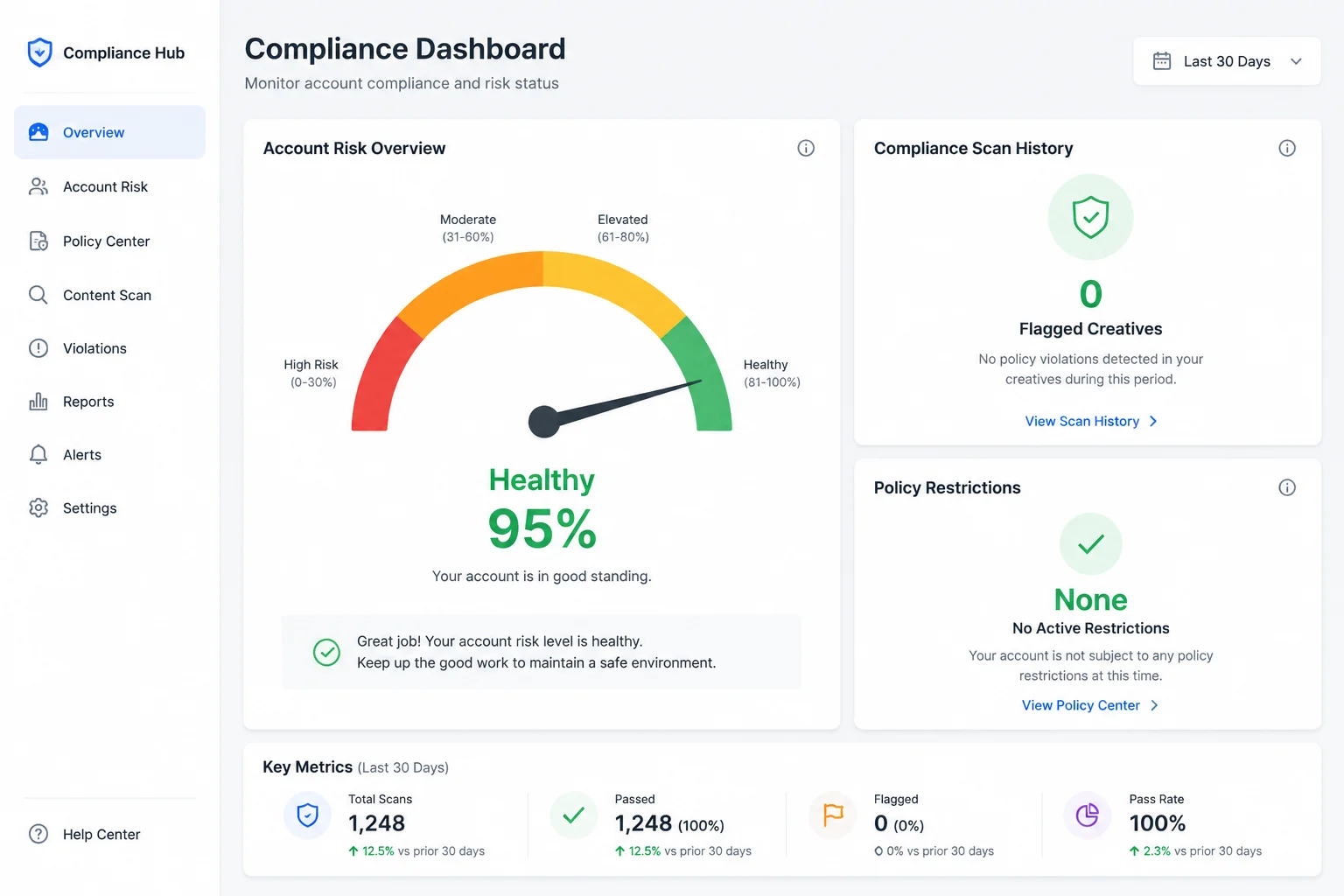
This means the fix is almost always on the billing side, not the content side. Checking the Account Quality dashboard at business.facebook.com/accountquality confirms whether the restriction is payment-related or policy-related. If the dashboard shows no policy violations, the restriction is payment-driven and the fix is on the billing page.
First action: check payment methods on desktop
The fb.me/boost-settings page works better on desktop than mobile. Many users report that mobile shows a generic error while desktop reveals the specific issue. Open a desktop browser, go to Ads Manager Billing, and review your payment methods. Add a new card if the existing one is expired or has been declined. Pay any outstanding balance visible on the billing page.
Portcast does not handle payment method management. That is between you and your bank. What we can help with: reviewing your account structure to move from an auto-created boosting account to a fully set up Facebook agency ad account with proper billing configuration and business verification. A properly structured account faces fewer payment-related restrictions because Meta associates it with a verified business entity rather than an individual card.
Boosting Is Currently Unavailable In The App
[IMAGE: h2-2-unavailable]
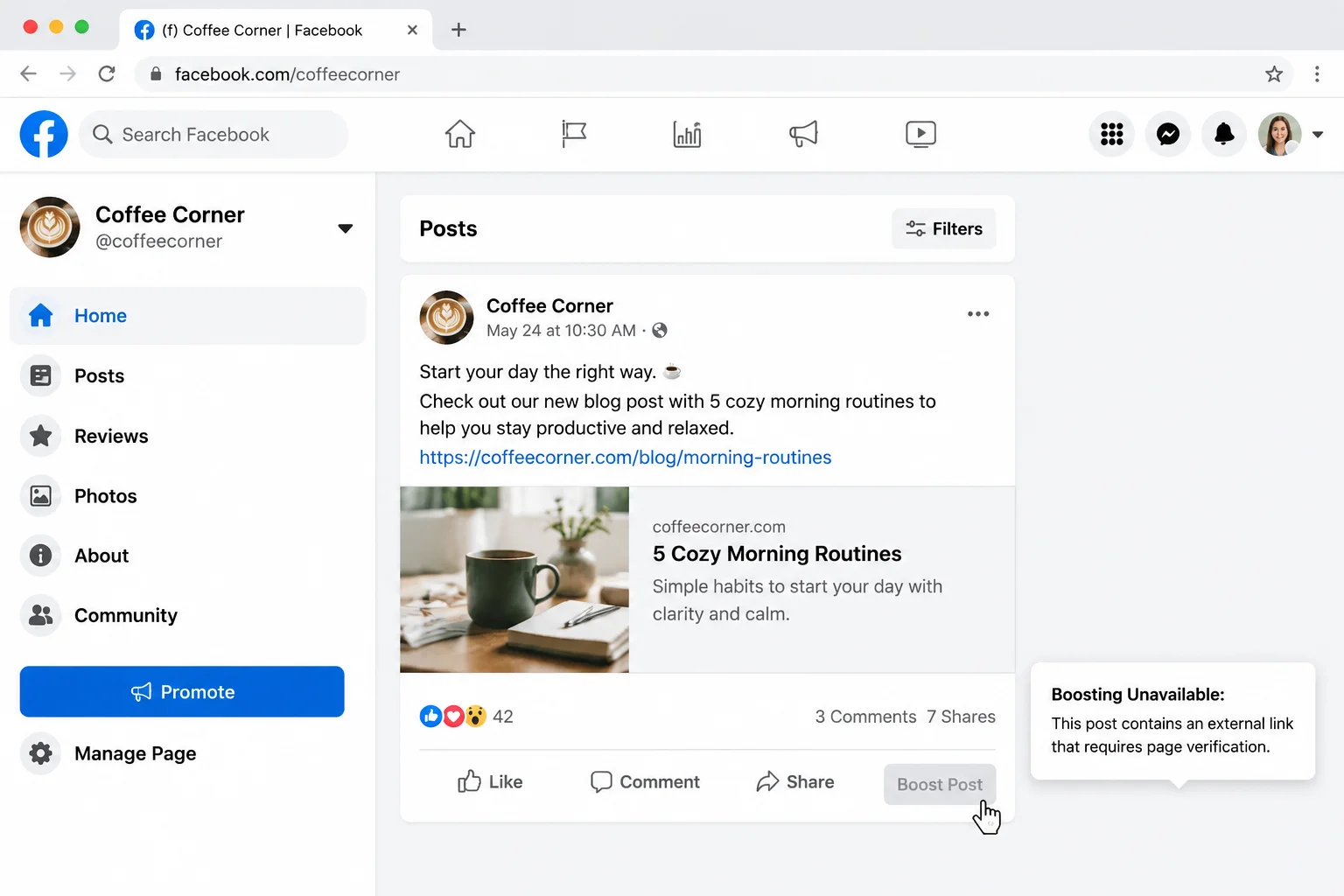
When the app shows "Boosting is currently unavailable," the fix is straightforward if the cause is payment-related, but requires a more thorough approach if the restriction involves account policy or browser environment issues.
Step-by-step troubleshooting
1. Visit www.fb.me/boost-settings on a desktop browser. This page shows the exact reason for the restriction. Mobile browsers sometimes truncate the detail. Use Chrome, Firefox, or Safari on a computer.
2. Check your payment methods.Go to Ads Manager > Billing > Payment Settings. Remove any expired cards and add a new, valid card. Ensure the card's billing address matches the country on your Meta account.
3. Pay any outstanding balance. If a previous billing cycle has an unpaid amount, click "Pay Now" or "Retry Payment" on the billing page. Even a $0.01 unpaid charge blocks boosting.
4. Contact your bank. Sometimes the bank blocks Meta's charges as suspected fraud. Call your bank's customer service and ask them to whitelist Meta charges from the specific business entity that processes Meta payments.
5. Check App Store region settings.On iPhone, go to Settings > Apple ID > Media & Purchases > View Account > Country/Region. Ensure this matches your Facebook account country. A mismatch between your phone region and Meta account region prevents payment processing through the in-app purchase flow.
6. Log out of the app and back in. This refreshes the account state synced to your device. Facebook and Instagram cache account status locally, and a logout-login cycle forces a fresh status check.
What to do if payment is not the issue
If you have checked payment methods, cleared outstanding balances, and confirmed the phone region matches, but boosting is still unavailable, the restriction may be policy-related:
- Check the Account Quality dashboard for any policy violations.
- Review your most recent boosted post for content that may have been flagged after publication. Meta's AI reviews boosted posts post-publication and can trigger a restriction days after the post went live.
- Check whether the specific post format is eligible for boosting. Some formats — Reels with licensed music, cross-posted content, posts with external links in certain formats — are not boostable by design.
Meta's enforcement data found that approximately 20% of "boosting unavailable" cases were caused by post format ineligibility rather than account restrictions. Before assuming your account is restricted, confirm that the specific post you are trying to boost is eligible.
Using desktop Ads Manager as a workaround
If boosting is unavailable in the app but you need to run ads, create the campaign through Meta Ads Manager on desktop. Ads Manager is not subject to the same in-app boosting restrictions. A payment issue that blocks the in-app boost flow does not always block Ads Manager campaign creation because the billing system processes them through different channels.
Portcast's compliance review evaluates your account structure for boost-related risk factors before they trigger restrictions. We do not fix payment issues with your bank. What we do: identify whether your account is set up in a way that makes it vulnerable to payment-related flags, and recommend structural changes — such as moving from an in-app boosting account to a dedicated agency ad account — that reduce the likelihood of recurring restrictions. Our customer-owned account model means the account and its billing history remain under your control.
Www.Fb.Me.Boost-Settings Account Disabled
[IMAGE: h2-3-permanent-disable]
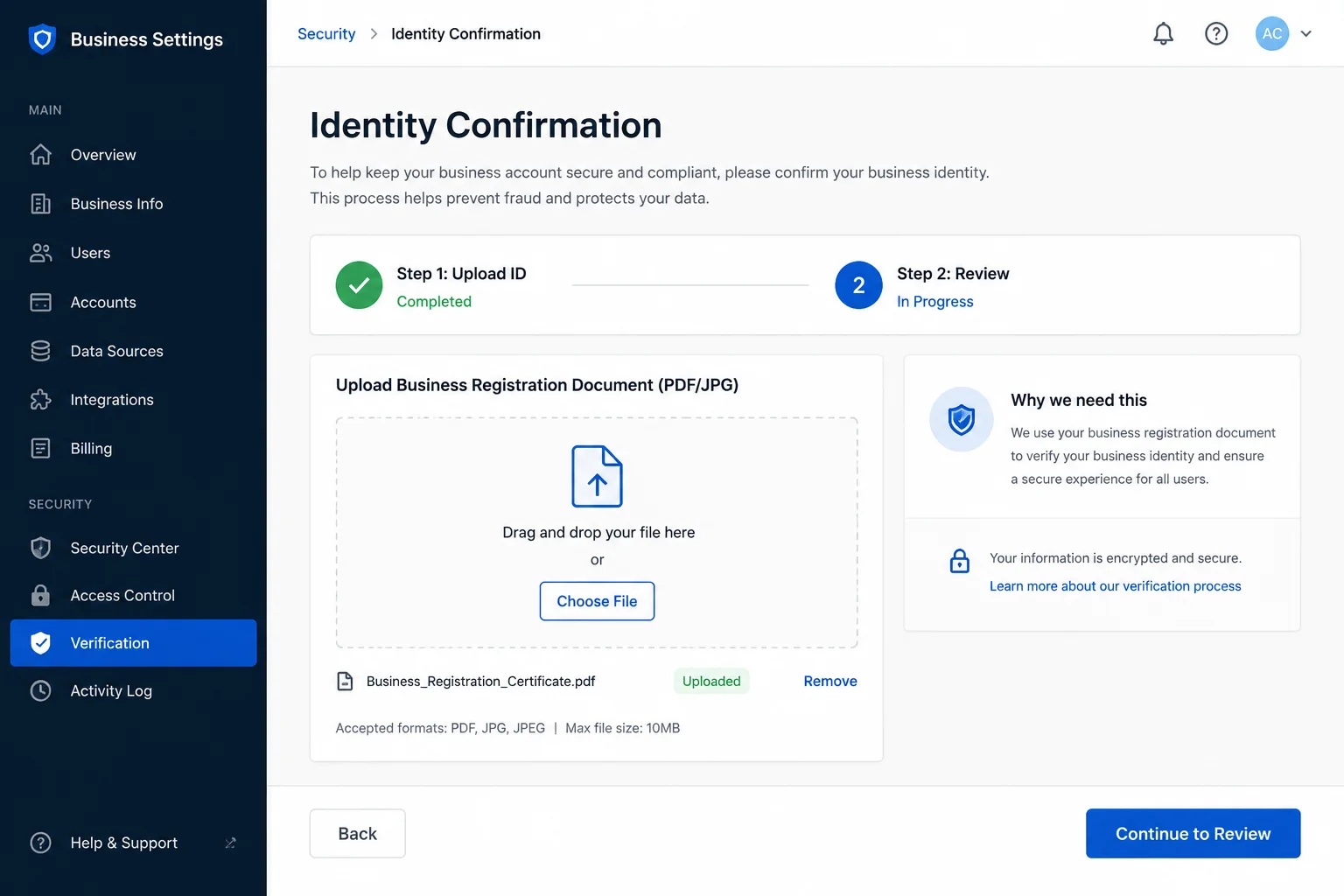
When www.fb.me/boost-settings shows "Account Disabled" and you have confirmed payment is not the issue, the restriction is likely a broader ad account suspension rather than a billing flag. This requires a different approach than the payment-focused fixes above.
Distinguishing a payment restriction from a policy suspension
| Signal | Payment restriction | Policy suspension |
|---|---|---|
| Error message at fb.me/boost-settings | "Payment issue" | "Policy violation" |
| Account Quality dashboard | No violations listed | Specific policy cited |
| Other ads running in Ads Manager | Yes — desktop ads may still work | No — all ads stopped |
| Appeal available | No — just fix payment | Yes — through Account Quality |
| Resolution | Minutes after payment fix | Days to weeks through appeal |
When the restriction is tied to your Business Manager
A "boost settings ad account disabled" error can also occur when the ad account is restricted at the Business Manager level rather than the individual account level. This happens when:
- The Facebook Page you are boosting from does not have admin permissions on the ad account. Only Page admins with ad account access can boost. If the Page was transferred to a different Business Manager without updating the ad account permissions, boosting stops working.
- The ad account was previously restricted under a different Business Manager and Meta's linked account detection flagged the current account.
- The primary Business Manager admin left the organization or lost access, and no other admin managed the ad account permissions.
Fixing Business Manager-level restrictions
If the issue is permission-related, the fix is on the Business Manager side:
1. Log into Meta Business Suite as an admin.
2. Go to Business Settings > Accounts > Ad Accounts.
3. Confirm that the ad account assigned to your Page has "Admin" or "Advertiser" level access.
4. If the ad account is missing, revoke the old one and assign a new ad account to the Page.
5. If no ad account exists under your Business Manager, create a new one or request access from your agency account provider.
Long-term prevention
Recurring "boosting unavailable" errors are a sign that your advertising setup should be restructured. Auto-created boosting accounts are convenient but fragile. A properly set up ad account through Meta Ads Manager with business verification, a verified payment method, and consistent billing history faces fewer restrictions than an account created through the in-app boost flow.
Portcast provides Facebook agency ad account setup with compliance review before onboarding. We do not guarantee that boosting will always be available — in-app boosting restrictions can be triggered by factors outside any provider's control, including bank fraud detection and phone region settings. What we do: structure your account so that ad delivery does not depend on a single in-app boosting pathway. If the boost button in the app is grayed out, your campaigns continue running through Ads Manager on a properly configured account with direct escalation support if issues arise.
If boosting is unavailable and your campaigns are stuck — or you want to move from an in-app boosting account to a structured advertising setup that faces fewer restrictions — talk to our AM. We will review your account structure, confirm fit, and scope the next step. No payment before scope is confirmed.
Written by Brian Sung
Growth Lead at Portcast Media. Writing about ad account infrastructure, platform policy, and how performance advertisers scale without getting shut down.
LinkedInFrequently asked questions
What Facebook advertising policies affect restricted ad accounts?+
The most relevant policies for restricted boosting accounts are Meta's Payment Terms, Ad Policies on misleading claims, and the Community Standards enforcement rules for repeated violations. A boosting restriction triggered by a policy violation will cite the specific policy in the Account Quality dashboard. The most common policy triggers for boosting accounts are misleading claims in the boosted post's imagery or copy, landing page issues (missing privacy policy or terms of service), and payment processing failures. Accounts restricted for payment reasons do not have a policy violation to appeal — the restriction lifts automatically once the payment issue is resolved. Meta's advertising policies are the full reference, and the Account Quality dashboard shows exactly which policy applies to your account.
How do I recover a disabled Google Ads account for policy violations after a Facebook boost restriction?+
Start by treating each platform's restriction as a separate issue with its own root cause and resolution path. A boost restriction on Facebook or Instagram does not directly affect your Google Ads account, but it is a signal that your advertising setup may need structural review. If both your Meta boosting account and your Google Ads account have been restricted, the root causes are typically separate — Meta restricts for payment and policy issues, while Google restricts for circumventing systems and misrepresentation. Fix each platform independently. For Meta, resolve the payment or policy issue through the Account Quality dashboard. For Google, use the Policy Center. If you are managing cross-platform campaigns and want to centralize account management, Portcast covers 16 platforms including both Meta and Google, with compliance review before onboarding for each platform separately.
What is the best way for a small business owner to recover a disabled ad account?+
The most effective approach for a small business owner is to resolve the specific issue shown in the Account Quality dashboard before submitting any appeal. Account Quality shows exactly why the account was restricted. If it is a payment issue, fix the payment method and the restriction lifts immediately. If it is a policy violation, read the specific policy cited, fix the ad or landing page, and submit an appeal through the dashboard with a description of the corrective actions taken. Meta's Business Help emphasizes that small businesses should not create a new ad account from the same Business Manager while an existing restriction is active — this creates a permanent record of circumventing systems behavior. If your sole ad account is restricted and you need to maintain ad delivery during the recovery process, an agency ad account provides a separate pathway that is not affected by your existing account's status.
What to do if an ad account appeal is rejected?+
If your appeal is rejected, read the rejection reason carefully — it tells you what documentation or corrective action was insufficient. Submit a second appeal only if you can provide new information that was not in the first appeal. Identical appeals are rejected automatically. If the rejection is for a payment-related restriction, there is no appeal — you must resolve the payment issue through the billing page. For policy-related rejections that persist after two attempts, consider escalating through Meta Business Support Home if your account qualifies for chat support, or contacting your state consumer protection agency for a regulatory-level escalation. Portcast's appeal support documents your account history for escalation cases but does not submit appeals on your behalf — the appeal submission is between you and Meta's review system.
How to contact Facebook ad support for disabled accounts+
Start by using the Account Quality dashboard's "Request Review" process, which is the primary support channel for all Meta ad account restrictions. Facebook ad support for disabled boosting accounts is available through three tiers: the Account Quality dashboard for initial appeals, Meta Business Support Home for accounts with qualifying spend, and Meta Verified for Business chat for verified accounts. The Account Quality dashboard is the primary channel — it routes your case to the appropriate review team. Business Support Home chat becomes available for accounts that have spent approximately $1,000 or more in the last 30 days. For accounts that do not meet the spend threshold, support options are limited to the appeal form. Portcast clients with managed accounts have access to direct escalation through established agency channels for accounts facing unwarranted restrictions.
Ready to check if your situation qualifies?
Describe your platform and account situation. Your AM will review fit and confirm the next step — no payment before scope is confirmed.